

Which Browsers Support Flash?
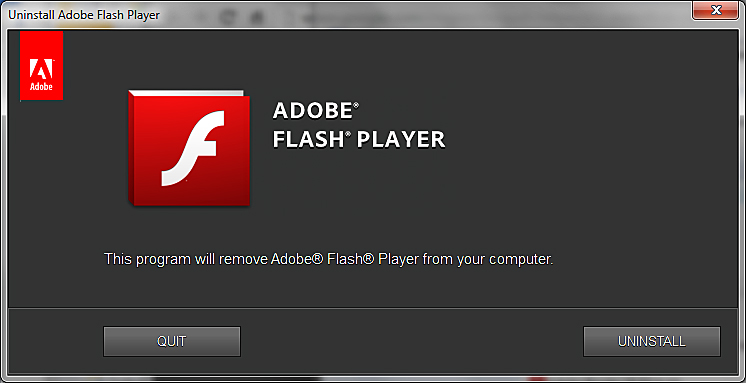
Short answer: no current mainstream browser supports the original Adobe Flash Player. Chrome, Edge, Firefox, Safari, and Opera removed the plug-in years ago. If you need to open an old Flash game, animation, or lesson in 2026, use a maintained emulator such as Ruffle or a trusted archival project—not an outdated browser or an unofficial Flash Player download.
This distinction matters because many older guides still show a “Allow Flash” setting that no longer exists. Adobe ended Flash Player support on December 31, 2020 and blocked Flash content from running beginning January 12, 2021. Modern browsers now rely on safer web standards such as HTML5, WebGL, and WebAssembly.
Do Any Browsers Still Support Adobe Flash Player?
No actively maintained mainstream browser can run the original Adobe Flash Player plug-in. The change is permanent:
- Google Chrome: removed Flash support; there is no working Flash permission to re-enable.
- Microsoft Edge: removed the built-in Flash component from supported versions.
- Mozilla Firefox: ended NPAPI Flash support and does not provide a setting to restore it.
- Apple Safari: no longer loads the Flash plug-in.
- Opera and other Chromium browsers: inherit the same removal from the Chromium platform.
A browser may still open an old Flash page when the website includes a Flash emulator. In that case, the browser is running modern JavaScript or WebAssembly—not Adobe Flash Player itself.
Why Flash Support Ended
Flash helped define the early interactive web, powering games, animations, video players, and classroom activities. Over time, open browser standards gained the same capabilities without requiring a separate proprietary plug-in. Flash also carried a long history of security vulnerabilities, and maintaining a plug-in across browsers and operating systems became increasingly difficult.
Adobe’s official Flash Player end-of-life notice confirms that security updates stopped after 2020 and recommends uninstalling the player. Installing a file advertised as a “new Flash Player” is therefore unsafe: Adobe does not publish a supported 2026 version.
If you want the technical background, our guide to how the internet and modern web applications work explains the standards browsers use today.
Safe Ways to Open Flash Content in 2026
1. Use a Website That Already Includes Ruffle
Ruffle is an open-source Flash emulator written in Rust. A website owner can add it to a page so supported SWF content runs through modern browser technology. If a trusted site has already integrated Ruffle, you normally only need to open the page and press play.
Compatibility is very good for much early Flash content, but complex ActionScript 3 projects may not behave exactly like the original. Saving progress, webcams, network features, or old server connections can also be unavailable.
2. Install the Official Ruffle Browser Extension
If a trusted page still hosts an SWF file but has not embedded an emulator, the official Ruffle extension can attempt to replace the missing player. Download it only from the links provided on the Ruffle downloads page. Avoid similarly named extensions from unknown publishers.
- Confirm that the website and SWF file are trustworthy.
- Open the official Ruffle downloads page.
- Choose the extension for your current browser and follow its installation instructions.
- Reload the Flash page and test the content.
- Remove or disable the extension when you no longer need it.
3. Use a Trusted Offline Archive
For preserved games and animations, a reputable archival collection may be safer and more reliable than visiting abandoned websites. Use the project’s official download page, scan downloaded files, and keep the archive software updated. Schools and organizations should test archival tools on a managed device before making them available to students.
4. Ask the Publisher for an Updated Version
Many educational simulations and games were rebuilt in HTML5. Search the original publisher’s website for a current version before trying to emulate the Flash release. An updated edition usually offers better accessibility, mobile support, and security.
What You Should Not Do
- Do not download “Flash Player 2026” installers. No supported Adobe release exists.
- Do not downgrade your everyday browser or operating system to restore Flash.
- Do not disable antivirus or browser security warnings to run an unknown SWF file.
- Do not use an abandoned browser for normal email, banking, school portals, or other accounts.
- Do not assume every emulator can safely repair a malicious or untrusted file.
Guidance for Website Owners
If you manage a website with Flash content, the best long-term solution is migration. Rebuild video and audio with native HTML media, interactive graphics with Canvas or WebGL, and application logic with JavaScript or WebAssembly. Ruffle can be a useful bridge for archived material, but it should not replace a planned modernization effort.
Start by inventorying every SWF file, identifying essential interactions, locating original source assets, and testing whether an emulator preserves the experience. Prioritize frequently used lessons and accessibility-critical content. Our computer science learning hub provides additional background on modern software and web technologies.
Common Questions
Can I Enable Flash in Chrome’s Site Settings?
No. Instructions that tell you to choose “Allow” beside Flash describe an obsolete Chrome version. The setting was removed when Flash support ended.
Does Puffin or Another Special Browser Run Flash?
Some services may render selected legacy content through their own remote or emulation technology. That is not native Adobe Flash Player support. Check the service’s current documentation, privacy terms, device support, and subscription requirements before using it.
Can a Chromebook, iPhone, or Android Device Run Flash?
These devices do not support the retired Adobe plug-in. A browser-based emulator may work when a trusted website provides it, but performance and compatibility depend on the content.
Is Ruffle Completely Compatible With Every SWF?
No emulator guarantees perfect compatibility. Simple animations and many older games work well, while projects with advanced scripting, external services, DRM, or specialized hardware access may not.
Bottom Line
No modern browser supports Adobe Flash Player in 2026, and trying to restore the retired plug-in creates unnecessary security risk. Use a maintained emulator from its official source, choose a reputable archive, or find an HTML5 replacement. For website owners, migration to open web standards remains the safest and most durable answer.